The Dell Latitude E5430 is a robust laptop that has served many users well since its release. However, as technology advances, it may become necessary to upgrade certain components to keep pace with modern demands. Whether you’re a business professional needing more power for demanding applications or a student looking to improve your multitasking capabilities, upgrading your Dell Latitude E5430 can breathe new life into your device. In this article, we will explore essential tips and tricks for upgrading your laptop effectively.
Understanding the Dell Latitude E5430
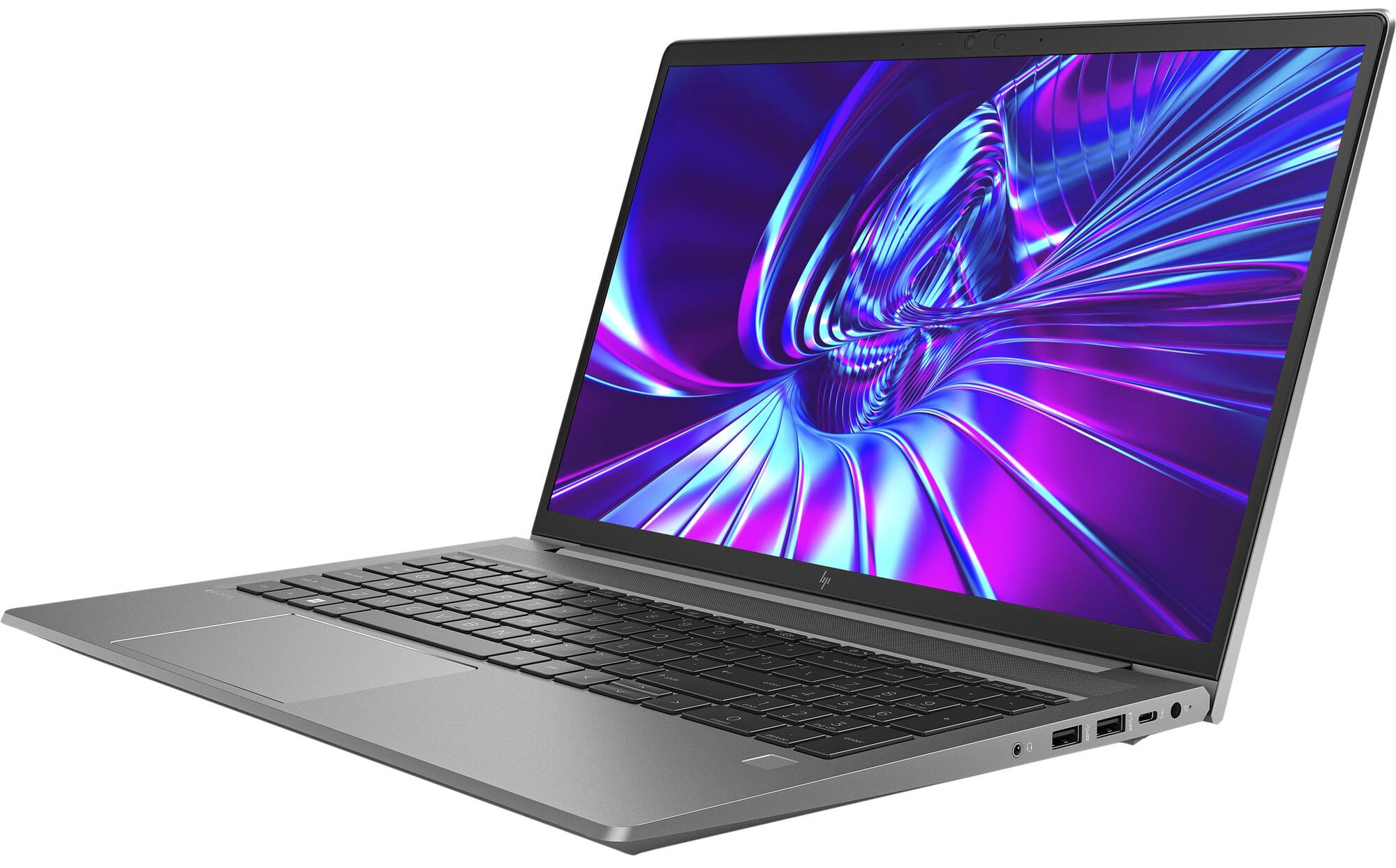
The Dell Latitude E5430 is part of the Latitude series, designed for business use. It features a 14-inch display, durable build quality, and a range of configurations. The laptop typically comes with Intel Core processors, ranging from i3 to i7, and offers various RAM and storage options. Knowing the specifications of your current model is crucial for planning upgrades.
Why Upgrade Your Dell Latitude E5430?
Upgrading your laptop can significantly enhance your user experience. Here are several reasons to consider an upgrade:
- Increased Performance: Upgrading RAM or switching to an SSD can drastically improve boot times and application load speeds.
- Extended Lifespan: Upgrading components can extend the life of your laptop, delaying the need for a new purchase.
- Cost-Effective: Upgrading is often cheaper than buying a new machine, especially if your current device meets most of your needs.
- Personalization: Tailoring your laptop’s specifications to your specific requirements can enhance productivity.
Key Components to Consider for Upgrade
When upgrading your Dell Latitude E5430, focus on the following key components:
1. RAM (Memory)
One of the most impactful upgrades is increasing your RAM. The Latitude E5430 typically supports up to 16GB of RAM, which can enhance multitasking capabilities and improve performance significantly.
- Check Current Usage: Use Task Manager (Windows) or Activity Monitor (Mac) to see how much RAM you currently use.
- Select Compatible RAM: Ensure you purchase DDR3L 1600 MHz SO-DIMM RAM for compatibility.
- Installation: The installation process is relatively straightforward: remove the back cover, locate the RAM slots, and replace or add the new modules.
2. SSD (Solid State Drive)
Upgrading to an SSD from a traditional HDD can yield a significant performance improvement. SSDs are faster, more reliable, and consume less power.
- Performance Gains: An SSD can reduce boot times from minutes to seconds.
- Storage Options: Choose between SATA SSDs or M.2 NVMe SSDs, but verify compatibility with the E5430.
- Cloning Software: Use cloning software like Macrium Reflect to transfer data from your old drive to the new SSD seamlessly.
3. Battery Upgrade
The battery life of older laptops can diminish over time. Upgrading to a new battery can extend your laptop’s usability away from a power source.
- Check Battery Health: Use battery assessment tools to determine the current health of your battery.
- Purchase OEM Batteries: Opt for original Dell batteries to ensure compatibility and reliability.
- Installation Tips: Follow the user manual for proper battery replacement procedures.
Upgrading the Operating System
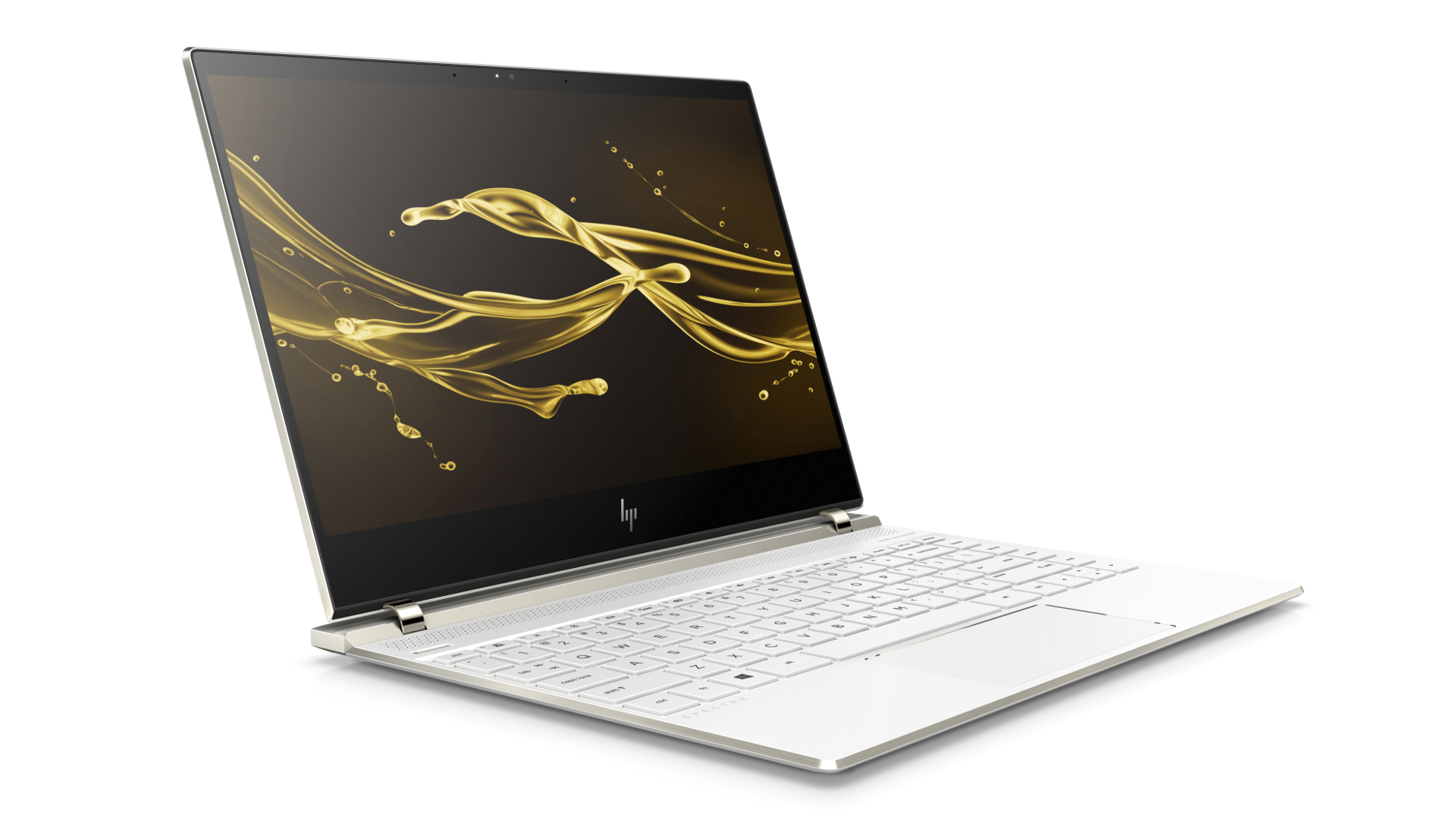
Another significant upgrade involves updating the operating system. If your Dell Latitude E5430 currently runs an older version of Windows, consider upgrading to the latest version for improved features and security.
- Check Compatibility: Ensure your hardware meets the system requirements for the latest OS.
- Backup Data: Always back up your data before performing an OS upgrade.
- Installation: Follow the installation process as guided by Microsoft’s official resources.
Enhancing Connectivity with Upgrades
In today’s connected world, having robust connectivity options is crucial. Consider upgrading the following:
1. Wi-Fi Card

Upgrading the Wi-Fi card can improve internet connectivity and speed, especially if you’re using a newer router that supports the latest Wi-Fi standards (like Wi-Fi 6).
- Compatibility: Look for mini PCIe Wi-Fi cards that are compatible with the Latitude E5430.
- Installation: Open the laptop’s back panel, locate the Wi-Fi card, and replace it with the new one.
- Driver Updates: After installation, update the drivers for optimal performance.
2. Ports and Accessories
Consider adding USB-C or Thunderbolt hubs to expand your connectivity options. These accessories can enhance your laptop’s functionality and allow for faster data transfer.
Case Study: Real-World Performance Gains
Many users have reported significant performance improvements after upgrading their Dell Latitude E5430. For instance, a case study of a business professional who upgraded from 4GB to 16GB RAM and switched from an HDD to an SSD showed:
- Boot Times: Reduced from 90 seconds to under 15 seconds.
- Application Launch Times: Programs like Microsoft Office and web browsers opened nearly instantaneously.
- Overall User Experience: The user experienced smoother multitasking, leading to increased productivity.
Statistics Supporting Upgrades
Research indicates that upgrading laptop components can lead to:
- Performance Boost: Upgrading RAM can increase performance by up to 50% in multitasking scenarios.
- Improved Battery Life: New batteries can last up to 30% longer compared to older models.
- Cost Savings: Users who upgrade rather than replace their laptops save an average of 40% on technology costs.
Upgrading your Dell Latitude E5430 can significantly enhance its performance, extend its lifespan, and make it more suited to your current needs. By focusing on key components such as RAM, storage, battery, and connectivity options, you can tailor your laptop to meet modern demands. The process may seem daunting, but with careful planning and execution, you can achieve impressive results. Remember to evaluate your current specifications, choose compatible components, and follow proper installation procedures to ensure a smooth upgrade experience. With these tips and tricks, you can unlock the full potential of your Dell Latitude E5430 and continue to enjoy its capabilities for years to come.
